suture
← Essays

Get your doc ready to send.

Six quick steps, about two minutes. Your essays stay in your own Google Doc, and every edit shows up there as a suggestion or a comment for you to accept or reject.

Step 1

Put your essays in one Google Doc

One doc for everything you want reviewed is easiest. If you have several essays, give each one its own tab: click + next to "Document tabs" on the left, and name each tab after the essay or school.

  • Writing in Word? Upload the file to Google Drive, open it, then choose File → Save as Google Docs.
  • Put each school's prompt above its essay so I can read the essay against it.
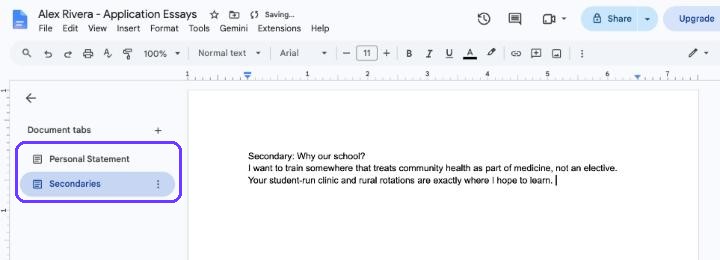
A Google Doc with two tabs on the left, Personal Statement and Secondaries
Each essay in its own tab
Step 2

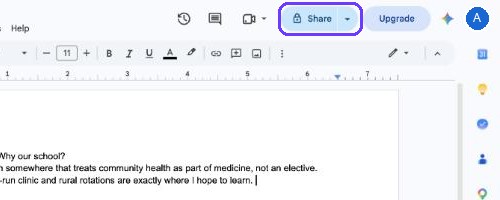
Click Share

It's the button at the top right of your doc, next to your profile picture. On a smaller window it may show as an icon of a person with a +.

The Share button at the top right of Google Docs, circled
The Share button
Step 3

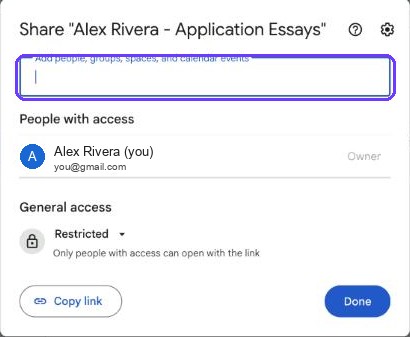
Add my email

Click the box that says "Add people, groups…" and paste this address:

Leave General access on Restricted. Only you and the people you add can open your doc, so you don't need "Anyone with the link".
The Share dialog with the Add people box circled
Paste the email into this box
Step 4

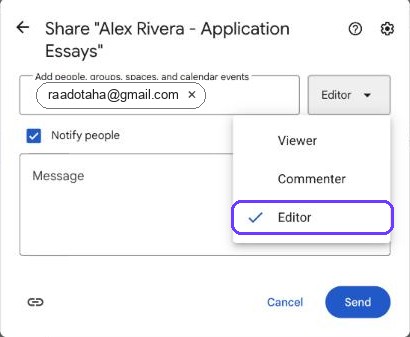
Choose Editor

Once my email is added, a menu appears on the right. Make sure it says Editor.

Why Editor? It lets me leave suggestions right in your text. I never change your essay directly: every edit is a suggestion you can accept or reject, and you can remove my access any time.
The access menu open with Editor selected and circled
Viewer, Commenter, Editor: pick Editor
Step 5

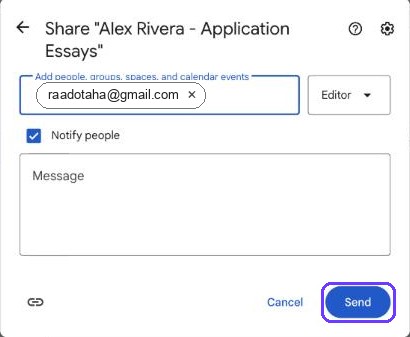
Click Send

Leave Notify people checked so I get an email that your doc is shared. You can add a short message if you like, such as which schools you're applying to.

The Share dialog with the Send button circled
Send shares the doc
Step 6

Copy your doc's link

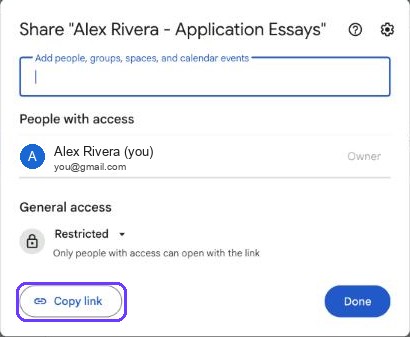
No tabs? Open Share again and click Copy link, or copy the address from your browser bar.

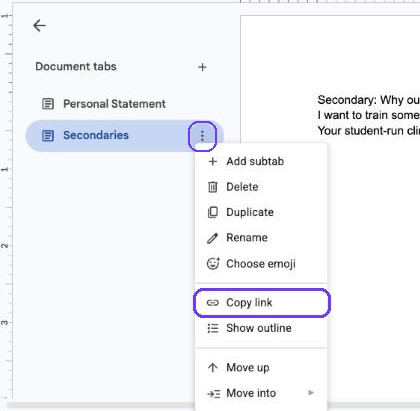
Using tabs? Copy the link to the tab with the essays you want reviewed: click the ⋮ next to the tab's name, then Copy link.

Then paste the link into the submission form.

Go to the submission form →

The Share dialog with the Copy link button circled
No tabs: Copy link in the Share dialog
A tab's menu open with Copy link circled
With tabs: ⋮ next to the tab, then Copy link

Common questions

"You need permission to share"

School Google accounts sometimes block sharing outside the school. If that happens, make a copy of your doc in a personal Gmail account (File → Make a copy) and share that one.

Will you change my essay?

No. Edits arrive as suggestions and comments. Nothing changes until you accept it, and you can reject anything you disagree with.

Can I keep writing while you edit?

Small fixes are fine, but big rewrites while I'm editing can make suggestions land in the wrong place. If you rewrite, send me a new request.

How do I remove your access later?

Click Share, open the menu next to my name, and choose Remove access.

Doc shared? You're ready.

Paste your link, pick standard or rush, and follow along on your private status page.

Submit your essays